The minecraft Project – The Reality

Today was day 1 of the minecraft project.

Some might say I ought to take my own advice. Some might say that perhaps a certain teacher shouldn’t try to jump into the fire feet first and let a bunch of 13 yr olds loose with a minecraft project from scratch without pre-installing the software for them.

Well to those people I say, Ye of Little Faith! Nothing ventured, nothing gained! And… Actually, yes. Perhaps I should’ve downloaded minecraft onto the SD cards before the lesson rather than asking the kids to do it.

But, we tried. One team succeeded. The others were foiled by the limitations of our school Internet. This setback didn’t stop them from getting excited about the project as a whole which is a good sign. However, this evening I have installed minecraft on all of the cards – tomorrow is another day, and that day heralds the joys of coding 🙂

(Minecraft) World Domination – Lesson 1 – Programming in Python

Lesson 1 of a new topic is always nervy, especially when you haven’t actually run it with a group before. I am really lucky to have a massively considerate group of year 9s who roll with the ups and downs of some of our coding experiments and who have learnt to just give things a go.

Not everything will work perfectly, failure is actually an option and we are learning from our mistakes.They are also learning that things will go wrong when you code and to dust themselves off and attack it again until it works.

I’ve linked my lesson 1 powerpoint at the end of this post for anyone who wants to use it.

The first thing to do in lesson 1 is to provide each group with a Rasberry Pi (in a class of 25, I’d have no more than 4 in a group – 2s and 3s is preferable, but it depends on the availability of the pi). The first part of the lesson looks at hardware – the group is given 5 minutes to plug their Pi in and have it booted to the desktop.

After this, if you are feeling brave, you could task them with installing Minecraft using the instructions in my Setting Up Minecraft post. Alternatively, you could set these up prior to the lesson.

Once ready, the kids should then set up an individual folder on the Pi for their files (it is useful to have them back the whole folder up onto a memory stick which prevents them from being tied to ‘thier Pi’).

Setting Up a Minecraft Folder

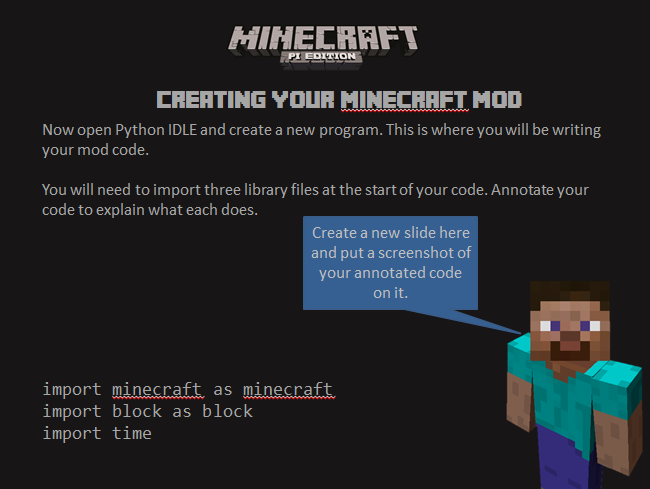
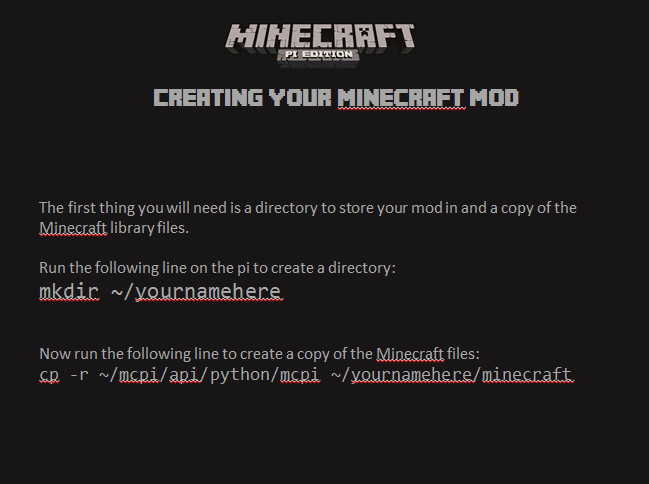
The following slides will guide them through the creation process. To ensure that this is not all practical work, set them the task within their team of recording what they are doing (including annotating their code and writing up their progress – this could include taking photos of what they are doing and adding these to their powerpoint)

Creating a minecraft Mod - Step 1

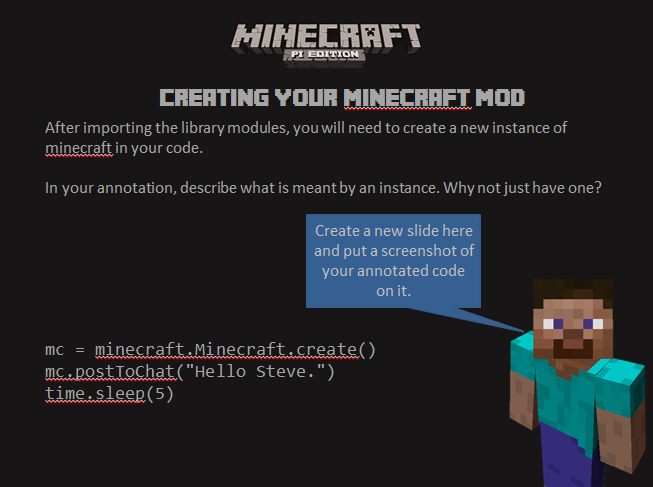
This is now a great time to get them to pause and consider what an ‘instance’ is. Possibly take it out of context and get them to describe a student

  • What ‘attributes’ does a student have? Write these down on the board (A class is a template of an object / instance)
  • Now ask them to describe someone in the classroom just by using the attributes. (An instance is real – the attributes have values)

Creating a minecraft Mod - Step 2

This is the crucial point where they will run their code and see it work in Minecraft. For some this will happen straight away, for others maybe not. It is possible to use these slides as ‘hinge’ moments in the lesson. You will know what progress they have made by what they are creating. The golden rule is they cannot move onto the next slide until they have shown they understand x.

Hinge 1 – Show an understanding of the term ‘instance’ (through their written explanation)

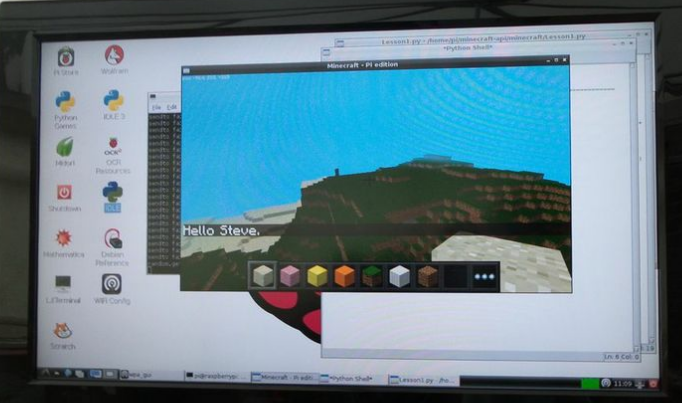
Hinge 2 – Provide evidence of working output code (screen capture / photo of minecraft message)

For some students, this will be enough to fill an hour as they will be adapting the output message to really get a grip on how the instance and chat screen actually works. Others may want to move forward and a good extension for this is to introduce co-ordinates in the world:

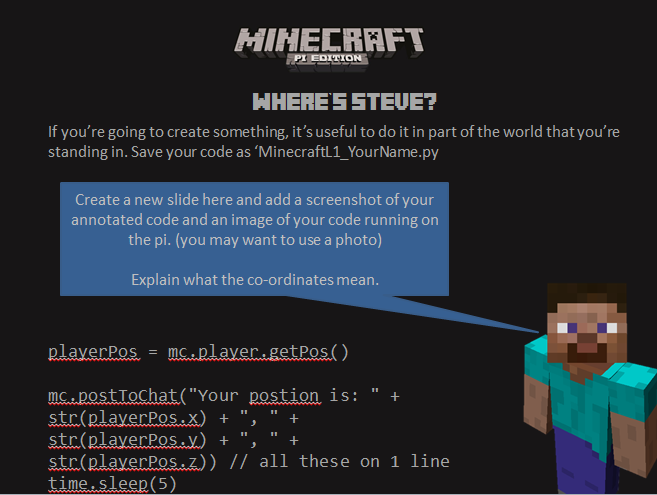
Hinge 3 – Show an understanding of the mathematical co-ordinates used within the 3D world

This piece of code picks up the x,y and z co-ordinates of ‘Steve’ the player and outputs them to the screen. Here, the students can move the player around and take a number of captures to see how the co-ordinates change based upon his current location. These can then be used to set up blocks in later lessons.

Creating a minecraft Mod - Step 3

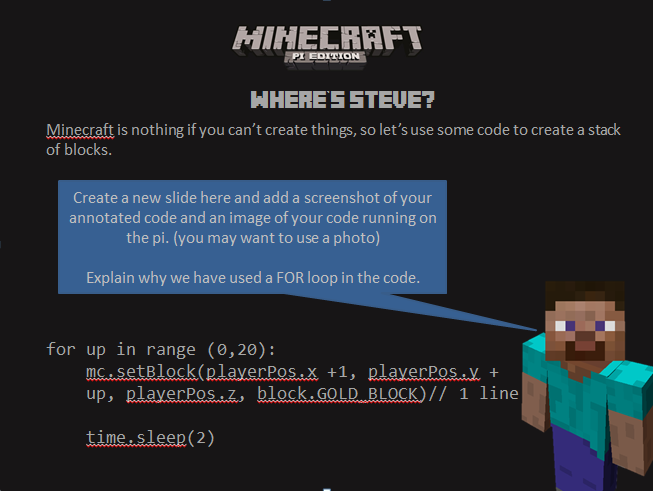
The final extension for this lesson is to create an instance of an actual block. This is the foundation of the game in creative mode and will provide them with the knowledge to build some impressive structures.

Here, a FOR loop is used to create a stack of 20 blocks.

Creating a minecraft Mod - Step 4

If any of the groups get to this stage – ask them to check on their presentations. Are they detailed enough? Would they be able to use them if they were asked at random to present their work to the class, the year, the headteacher….. hint hint 😉

Computing – Minecraft – L1
(Minecraft) World Domination via a Raspberry Pi – Setting Up

We’re now half way through our first year of a three year GCSE in Computer Science and my year 9s are chomping at the bit for something to release them from their controlled assessment.

So, the challenge is :

  • A group project
  • Using Python
  • That isn’t just text on a screen
  • That teaches them the concepts of classes and instances (yes, I know this is more A Level than GCSE, but give a man a fish….)
  • That engages the more visual / creative minds in the classroom

One word. Minecraft.        (Actually, Minecraft Pi Edition)

I set this as my half term project with all the self-confidence as someone who is happily coding in 4 different languages each week. How hard can this be?

….. skip forward two days of threatening to launch my pi out of the window and make it fend for itself in the rain…. Why this post? Because if I’m struggling as a software developer in a previous life and a self-confessed nerd, the documentation out there is likely to put off any teacher trying to move from ICT into Computing within hours. Let’s make this less painful. Let’s set it up as a SoW that can be followed.

To be fair, the issues I faced were mainly due to needing to reinstall my OS. I initially opted for NOOBS as this seemed the sensible option for school. After 5 hours of angry formatting of hard drives, buying a new SD card, formatting that another three times, I reinstalled Raspbian and returned to what I knew. Raspian works.

Installing the Minecraft Pi edition is as easy as connecting your pi to the WiFi, opening up an LX Terminal and typing the following command:

wget https://s3.amazonaws.com/assets.minecraft.net/pi/minecraft-pi-0.1.1.tar.gz

This will grab the installation file (be warned, it’ll only tell you if something goes wrong!)

Now type the command to install the file (actually, it just unzips the code):

tar xzf minecraft-pi-0.1.1.tar.gz

You’re now ready to run Minecraft Pi. To do this, open your LXTerminal and type the following:

Change your directory to the Minecraft folder:

cd mcpi

Finally, run Minecraft:

./minecraft-pi

Test it. Test it well. Also, don’t try to test it over a remote desktop connection as it will just give you a blank screen. (guess who found that out the hard way!)

So now you have Minecraft, but no way of running any code in it. This is actually as simple as creating a folder on the pi home directory and copying in the python API files (Don’t panic! We’re going to go through this step by step…)

  1. Open up your LXTerminal (or get the kids to do this – I’ve included these instructions in the Powerpoint in Lesson 1)
  2. Create a new folder by typing:  mkdir ~/yournamehere
  3. Now copy across the python Minecraft files to your folder by typing:  cp -r ~/mcpi/api/python/mcpi ~/yournamehere/minecraft
  4. The final stage is to create a new Python file using the IDLE (not IDLE 3!) and name it Test.py  Save this file in your new Minecraft folder alongside the other .py files.
  5. In your Test.py file type in the following code (this is all explained properly in Lesson 1:

import minecraft as minecraft
import time

mc = minecraft.Minecraft.create()
mc.postToChat(“Hello Steve.”)
time.sleep(5)

Finally, open Minecraft pi edition via the LXTerminal using the commands above.

Pause the game (‘e’), run your code from IDLE and jump back into your game by selecting a block.

You should see this screen:

Image